

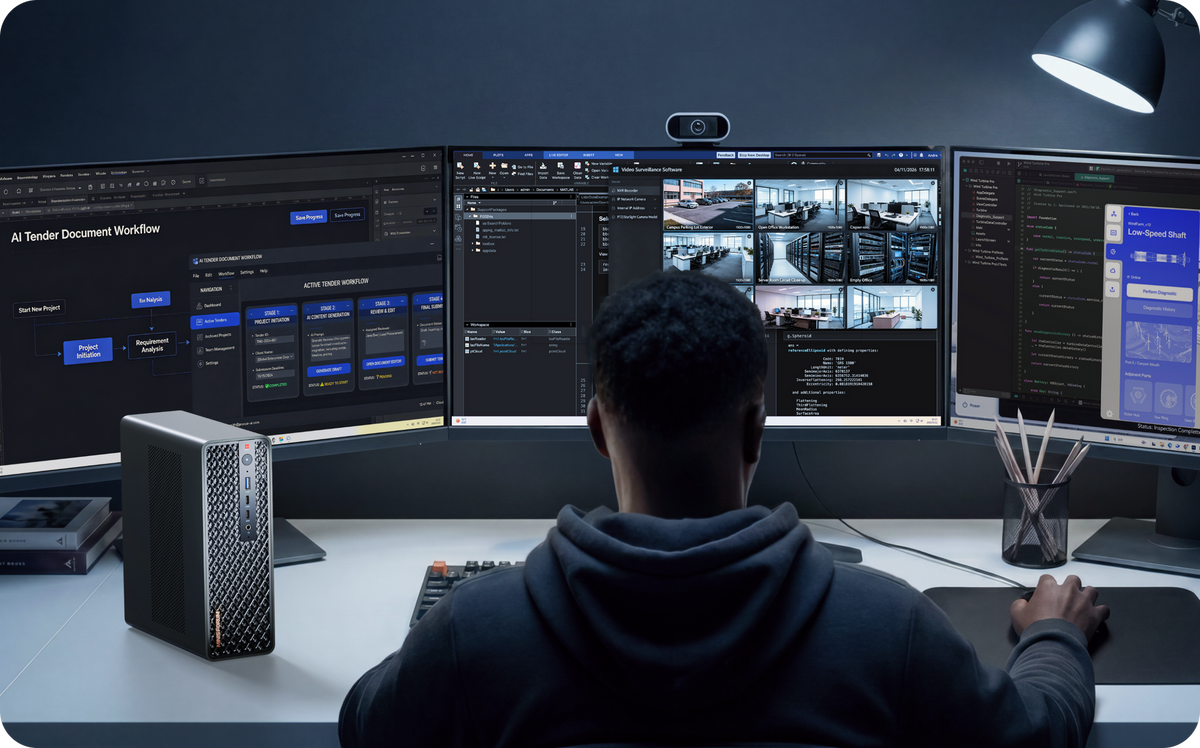
Is a Mini PC Good for Video Editing? From 1080p to 4K Content Creation
Yes.
For short-form video, YouTube, social content and everyday 1080p projects, a modern Mini PC can already handle a large part of the workload. The gap only becomes more noticeable once projects move into 4K, multi-track timelines, colour grading, motion graphics and increasingly common AI-assisted tools.
At that point, editing performance depends far more on the CPU, GPU, RAM, SSD and I/O than on the size of the computer itself.
Which Type of Creator Are You?
| Workflow | Recommended Direction | Main Priorities |
|---|---|---|
| Short Video / YouTube / 1080p | 32GB + 1TB SSD | CPU, SSD, Integrated GPU |
| 4K Editing / Multi-Track Projects | 32GB–64GB + 2TB SSD | GPU, RAM, SSD Expansion |
| 4K + Multiple Creative Apps | 64GB + 2TB or More | GPU, RAM, Multiple M.2 Slots |
| Content Creation + Local AI | 64GB–128GB | GPU, RAM, Model Storage |
| Desktop GPU Later | OCuLink Mini PC | GPU Upgrade Path |
If your main work is YouTube, TikTok, Instagram Reels or ordinary 1080p content, there is no need to buy a machine as if every project were already a full workstation workload.
1080p Creator: 32GB + 1TB Is Already a Practical Starting Point
For short-form video, course content, YouTube or other social media work, a practical starting point is a modern multi-core CPU + 32GB RAM + 1TB SSD.
Editing software is rarely the only thing open. A real working session may also include a browser, Photoshop, subtitle tools, asset management, cloud storage and communication apps. 32GB gives those applications enough breathing room, while a 1TB SSD can hold the operating system, software, cache and active projects.
For this kind of creator, strong integrated graphics can already cover a lot of day-to-day work. Video editing does not automatically mean you need a desktop GPU from the start.
4K Creator: RAM, GPU and Storage Start to Matter More
4K footage is larger, timeline previews use more GPU and memory resources, and proxy, cache, preview and export files can consume SSD space quickly.
A more suitable direction for 4K content creation is:
| Component | Recommended Direction |
|---|---|
| RAM | 32GB–64GB |
| Storage | 2TB or More |
| GPU | High-Performance Integrated GPU / Desktop GPU |
| SSD Expansion | Two M.2 Slots or More |
| External I/O | USB4 |
| Future GPU | OCuLink |
If Photoshop, Lightroom, browser tabs, other creative tools or Local AI are also running at the same time, 64GB gives the whole workflow more room.
AI Creator: Creative Work + AI Work
AI-assisted tools are becoming increasingly common in content creation workflows. If those tools run in the cloud, they place relatively little pressure on the local machine.
Once Local AI models are part of the workflow, however, RAM, GPU resources and SSD capacity all matter. 32GB can cover lighter Local AI use, while 64GB is better suited to running editing software and Local AI together.
If the workflow expands towards larger Local LLMs, multiple AI services or more complex RAG systems, 96GB–128GB becomes more practical.
For a deeper look at Local AI hardware requirements, see Local AI Mini PC Guide: 7B, 30B & 70B+ Models.
What Actually Fills a Creator's SSD?
A video project includes more than the original footage. Proxy files, previews and cache, audio and graphic assets, export files and project backups can all build up around the source material, so real storage use is often much higher than the raw footage alone suggests.
For creators, the important question is not only how much storage comes installed, but whether it can be expanded later.
1TB
Best suited to 1080p, short-form content and users who do not keep many active projects on the machine at once.
2TB
A better fit for 4K projects, larger media libraries and several long-running projects.
Multiple M.2 Slots
Multiple M.2 slots make it easier to separate the system drive, project media and cache. As projects grow, another SSD can be added without having to reorganise the entire system drive.
For more on storage capacity, see our Mini PC SSD Storage Guide.
32GB, 64GB or 128GB?
| RAM | Best Suited To |
|---|---|
| 32GB | 1080p, Short Video, Standard 4K, Photoshop |
| 64GB | 4K, Multi-Track Timelines, Multiple Creative Apps, Local AI |
| 96GB–128GB | Heavy Creative Workflows, Large Local AI Models, 3D, Large Datasets |
For most 1080p and ordinary 4K projects, 32GB is already a practical capacity. 64GB makes more sense for multi-track work, motion graphics, RAW footage, Local AI and several creative applications running together.
128GB is usually unnecessary for ordinary video editing. It becomes more relevant when the same machine is also handling large After Effects projects, 3D work, Local AI, virtual machines or large datasets.
If you are still deciding how much memory you need, see How Much RAM Does a Mini PC Need?
CPU or GPU: Which Matters More for Video Editing?
It is not an either-or choice.
| CPU More Commonly Handles | GPU More Commonly Handles |
|---|---|
| Decode | Colour Grading |
| Encode | GPU Effects |
| Timeline Processing | AI Effects |
| Export | Noise Reduction |
| Background Tasks | Preview |
| Some Effects | GPU Rendering / 3D |
A Video Editing Mini PC should be judged on whether CPU + GPU + RAM + Storage form a balanced system.
What Can Integrated Graphics Already Do?
High-performance integrated graphics such as Radeon 780M and Radeon 890M can already support 1080p content creation, everyday 4K editing, image editing and lighter GPU effects.
The advantage is straightforward: no desktop GPU, no oversized PSU and no large tower chassis.
For student creators, freelancers, home offices and smaller creator workspaces, that keeps the setup compact while still leaving room to upgrade later if the workload changes.
What If GPU Requirements Keep Growing?
This is where OCuLink can become the second stage of a Creator Mini PC.
Stage 1: Mini PC + Integrated Graphics for editing, Photoshop and everyday creator workflows.
Stage 2: Mini PC + OCuLink + Desktop GPU for heavier colour grading, GPU effects, 3D, Blender, AI video tools or GPU rendering.
The upgrade path becomes:
Mini PC → Integrated Creation → Desktop GPU Expansion
For more on this setup, see our OCuLink eGPU Dock Guide.
Which Ports Matter in a Creator Workspace?
USB4
USB4 is especially useful for high-speed external devices and docks.
With a compatible USB4 dock, one connection can handle a display, keyboard, mouse, network connection and external storage. It is also useful for creators who regularly import footage from fast external SSDs.
SD Card Reader
If your footage mainly comes from a camera, drone or action camera, an SD card reader can be very useful.
If the workflow mostly relies on external SSDs, cloud storage or a NAS, it is less important as a buying priority.
Multi-Monitor Output
Timeline, preview, assets, browser windows and communication apps often need to be visible at the same time. For long-term content creation work, check the number of supported displays, connection types and resolutions before buying.
Mini PC + NAS: Separate Compute from Media
As projects grow, keeping every piece of footage on the Mini PC's internal SSD becomes less convenient.
Mini PC = Compute Layer, responsible for editing, rendering, export, creative applications and Local AI.
NAS = Media / Data Layer, responsible for footage, project archives, backups, media libraries and shared assets.
Active projects can stay on a fast local NVMe SSD, then move to the NAS for archive once the work is finished. This keeps local editing performance high without letting internal storage expand indefinitely.
If you are still deciding how a Mini PC and NAS should divide the workload, see Mini PC or NAS? What I Learned While Choosing Between Them.
Three MINISFORUM Creator Setups
X1-Lite 255 — 1080p Creator Setup
The X1-Lite 255 combines Radeon 780M graphics, 32GB DDR5 memory and around 1TB of NVMe storage.
It is a good fit for 1080p editing, YouTube, short-form video, Photoshop, social media content and everyday PC use.
Dual M.2 slots, USB4 and OCuLink also leave room for more storage, external devices and future GPU expansion.
Think of it as Everyday PC + 1080p Editing + Content Creation.
UM880 Plus — Expandable Creator Setup
The UM880 Plus uses AMD Ryzen 7 8845HS with Radeon 780M graphics and offers upgradeable DDR5 memory, dual M.2 storage, USB4 and OCuLink.
As projects grow, add more SSD capacity. As creative apps and multitasking become heavier, add more RAM. If GPU requirements rise later, connect a desktop GPU through OCuLink.
Its main strength is simple: Expandable Content Creation Mini PC.
AI X1 Pro-370 — 4K + AI Creator Setup
The AI X1 Pro-370 combines AMD Ryzen AI 9 HX 370 with Radeon 890M graphics and comes with 64GB RAM + 2TB SSD.
It is better suited to 4K editing, multiple creative applications, AI tools, Local AI and heavier multitasking.
Three M.2 SSD slots provide more flexibility for separating footage, cache and Local AI models, while OCuLink keeps a future desktop GPU upgrade path open.
It is best understood as 4K Content Creation + Local AI + Future GPU Expansion.
What Should European Creators Check Before Buying?
For freelancers, photographers, video editors and content creators, a hardware problem can affect more than the machine itself. It can also delay client delivery and project deadlines.
Alongside CPU, GPU, RAM and SSD specifications, European buyers should also check VAT, the dispatch warehouse, returns, warranty coverage, European repair options and after-sales support.
The MINISFORUM EU Store states that VAT is included in displayed prices for orders shipped to EU countries and that in-stock products are dispatched from its German warehouse. Current EU Store warranty terms provide 36 months of cover for eligible PCs, workstations and NAS products purchased on or after 9 March 2026, while the European repair process includes a repair centre in Hamburg, Germany.
For a machine used every day for paid work, local repair access and recovery time are part of the real cost of ownership.
Choose by Workflow, Not Just by “Video Editing”
If you mainly work in 1080p, 32GB RAM + 1TB SSD + Modern Integrated GPU can already cover a wide range of creator workflows.
For 4K, 32GB–64GB + Larger SSD + Stronger GPU is a better fit.
If content creation also includes Local AI, 64GB+ RAM + More Storage + GPU Expansion gives you more room to grow.
The key buying questions are RAM, SSD expansion, external I/O, display support and future GPU expansion. A Creator Mini PC does not need to be in its final form on day one.
It can start as a 1080p Editing PC, then grow into a complete Content Creation Workstation as projects move into 4K, Local AI and heavier GPU workloads.


Leave a comment
This site is protected by hCaptcha and the hCaptcha Privacy Policy and Terms of Service apply.